# Dr. D's path to the code to build this course website
here::here()
[1] "/Users/edward/Math130book"In this lesson we will introduce methods to get data from external files into R.
If you download multiple copies of the data, do not keep the versions that have a (1) or some number in the name. Do not leave these files in your downloads folder.
Be sure you download the CSV file as .csv and not as a .numbers file. If you create a file in Numbers, you can choose File > Export To > CSV to convert it.
In this lesson we are only going to explore reading files that exist on your computer into R from three most commonly used data sources: A tab-delimited text file, A CSV file and an Excel file.
The three different files we will be using have different file types, or extensions.
email.txt is a .txt or “text” file.NCBirths.csv is a .csv or “comma separated values” file.fatal-police-shootings-data.xlsx is a .xlsx or Excel file.Each of these file types differ in the type of delimiter used. The delimiter is a character or symbol that separates columns of data from each other when stored in an external file. Recall back to the earlier lesson on data frames and matrices. Each column in the matrix represented data on a specific variable. Something had to tell R how to distinguish which values went with which variable.
There are two main types of delimiters we will consider in this class; comma and tab. That does not mean that data can’t be stored in other ways, these are just the two most common.
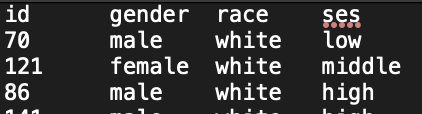
id, gender, race, and ses.
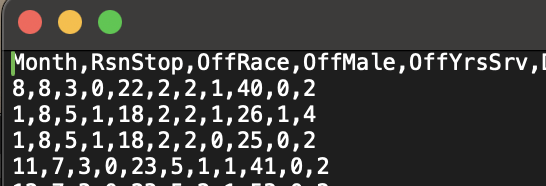
Month, RsnStop, OffRace, etc
Each delimiter type requires a different function or mechanism to import the data into R. If you use the wrong mechanism, the data may not be read in correctly if at all.
In addition to using the correct function for the delimiter type, we have to then tell the program explicitly where to find the files you want to access. To do that we need to find the file’s path. The path is a programmatic way to direct your computer to the location of a file.
You can think of it as a file’s address, or where it lives on your computer. But to get to that address depends on where you start your journey. For example to get to your instructors office in Holt Hall, it will be different depending on if you start from your house, vs start from Meriam Library. If someone else starts from their house, their path would look different than if you both started at the Library.
/Users/rdonatello/Library/CloudStorage/Box-Box/Teaching/MATH 130/data This path to the data folder only exists on Dr. Donatello’s macbook.MATH 130/data. This path to the data folder once you’re already in the MATH 130 folder. Anyone that has a MATH 130 folder with a data subfolder has the same path.When we use R Projects, we are setting the starting point (called the working directory) to your Math 130 folder. We will also reinforce that by using the here package. We want to specify that all our paths start "here", at the top of our project working directory.

Working with a combination of R projects and the here package this way makes it a lot easier to move your project around on your computer and share it with others without having to directly modify file paths in the individual scripts.
The import code in this lesson assumes that you are working in your R project, and that you have your data downloaded and in the data folder. If you get an error message saying Cannot open the connection - double check the following common places for mistakes:
here::here function correctly?Checking the import was successful video
The first thing you should always do after importing a data file is look at the raw data and ask yourself the following things:
Next we will read in three different data sets, each with unique file types, and look at each one to make sure it was read in correctly.
Text files are very simple files that have a .txt file extension. Common delimiters include a space, a comma (,) or a tab. Uncommon delimiters could include a % or even a semi-colon (;).
We will use the read.table() function that is in base R to read in any type of delimited file.
read.table() function because it is a text file
here::here to ensure you start at the project directory, then go into the data folder, and find the email.txt data set.
header=TRUE to signify that the data in the first row contains our column names
"\t").
Let’s use the head function to look at the imported data, ensuring the variable names are intended, and that each column has data in it.
head(email) spam to_multiple from cc sent_email time image attach dollar
1 0 0 1 0 0 2011-12-31 22:16:41 0 0 0
2 0 0 1 0 0 2011-12-31 23:03:59 0 0 0
3 0 0 1 0 0 2012-01-01 08:00:32 0 0 4
4 0 0 1 0 0 2012-01-01 01:09:49 0 0 0
5 0 0 1 0 0 2012-01-01 02:00:01 0 0 0
6 0 0 1 0 0 2012-01-01 02:04:46 0 0 0
winner inherit viagra password num_char line_breaks format re_subj
1 no 0 0 0 11.370 202 1 0
2 no 0 0 0 10.504 202 1 0
3 no 1 0 0 7.773 192 1 0
4 no 0 0 0 13.256 255 1 0
5 no 0 0 2 1.231 29 0 0
6 no 0 0 2 1.091 25 0 0
exclaim_subj urgent_subj exclaim_mess number
1 0 0 0 big
2 0 0 1 small
3 0 0 6 small
4 0 0 48 small
5 0 0 1 none
6 0 0 1 noneWhat happens if you forget to include the arguments for header or sep? Try that now and discuss what happened.
email.noboth <- read.table(here::here("data/email.txt"))Error in read.table(here::here("data/email.txt")): duplicate 'row.names' are not allowedhead(email.noboth)Error: object 'email.noboth' not foundemail.nohead <- read.table(here::here("data/email.txt"), sep="\t")
head(email.nohead) V1 V2 V3 V4 V5 V6 V7 V8 V9
1 spam to_multiple from cc sent_email time image attach dollar
2 0 0 1 0 0 2011-12-31 22:16:41 0 0 0
3 0 0 1 0 0 2011-12-31 23:03:59 0 0 0
4 0 0 1 0 0 2012-01-01 08:00:32 0 0 4
5 0 0 1 0 0 2012-01-01 01:09:49 0 0 0
6 0 0 1 0 0 2012-01-01 02:00:01 0 0 0
V10 V11 V12 V13 V14 V15 V16 V17
1 winner inherit viagra password num_char line_breaks format re_subj
2 no 0 0 0 11.37 202 1 0
3 no 0 0 0 10.504 202 1 0
4 no 1 0 0 7.773 192 1 0
5 no 0 0 0 13.256 255 1 0
6 no 0 0 2 1.231 29 0 0
V18 V19 V20 V21
1 exclaim_subj urgent_subj exclaim_mess number
2 0 0 0 big
3 0 0 1 small
4 0 0 6 small
5 0 0 48 small
6 0 0 1 noneemail.nohead, but the variable names were read in as data in the first row. R assigned generic V1, and V2 data names as your clue.
email.nosep <- read.table(here::here("data/email.txt"), header=TRUE)Error in read.table(here::here("data/email.txt"), header = TRUE): duplicate 'row.names' are not allowedCSV: Comma Separated Values video
CSV stands for “comma-separated values”. This file type can also open in spreadsheet programs like MS Excel, Numbers or google sheets. The icons even look similar. Here we use the read.csv() function because it is optimized to read in this file type.
cc <- read.csv(here::here("data/countyComplete.csv"), header=TRUE)
cc[1:5, 1:6] # peek at the first 5 rows and 6 columns of the data
name state FIPS pop2010 pop2000 age_under_5
1 Autauga County Alabama 1001 54571 43671 6.6
2 Baldwin County Alabama 1003 182265 140415 6.1
3 Barbour County Alabama 1005 27457 29038 6.2
4 Bibb County Alabama 1007 22915 20826 6.0
5 Blount County Alabama 1009 57322 51024 6.3The variable names are present, the data are all in columns with reasonable data types.
Files with the .xlsx or .xls extensions are Microsoft Excel files. These are also comma separated, but have more features than a .csv file. We will use the read_excel() function from the readxl package, which is contained within the tidyverse package that we installed earlier.
library(readxl)
police  <- read_excel(here::here("data/fatal-police-shootings-data.xlsx"),
                      sheet=1, col_names=TRUE)
police[1:6,2:6] # peek at the first 5 rows and 6 columns of the data
# A tibble: 6 × 5
name date manner_of_death armed age
<chr> <dttm> <chr> <chr> <dbl>
1 Tim Elliot 2015-01-02 00:00:00 shot gun 53
2 Lewis Lee Lembke 2015-01-02 00:00:00 shot gun 47
3 John Paul Quintero 2015-01-03 00:00:00 shot and Tasered unarmed 23
4 Matthew Hoffman 2015-01-04 00:00:00 shot toy weapon 32
5 Michael Rodriguez 2015-01-04 00:00:00 shot nail gun 39
6 Kenneth Joe Brown 2015-01-04 00:00:00 shot gun 18tibble, not a data.frame. Ref Section Section 7.1 to recall the differences.date is a dttm or date-time variable. This means R recognizes it directly as a date, not some string of numbers. This is good.manner_of_death and city are read in as character instead of factor. We may or may not want to change that later.age are of type dbl (double). This is similar to integer or numeric, so we are fine.